
KeyTik Mechanism
Overall Mechanism
KeyTik uses AutoHotkey as its automation executor. AutoHotkey is a powerful scripting language ideally suited for this purpose — it handles virtually all automation tasks while keeping the overall footprint small. A typical AutoHotkey script is under 1MB, whereas building the same functionality with a Python library alone would result in a significantly larger package.
AutoHotkey's single-file-per-script model is also a natural fit for KeyTik's feature set. Because each remap or automation profile lives in its own file, KeyTik can apply features to individual profiles independently — enabling things like per-profile startup behavior and multi-profile management.
In short, KeyTik uses Python for the core application layer (the GUI, profile management, create/edit/run/delete/startup functions, and more) and AutoHotkey as the executor that actually runs each profile. The application takes your input, generates the appropriate AutoHotkey script, and manages it from there. The generated scripts can be found at KeyTik_internal\data\active.
For example, given this input:
Example 1 — Without Shortcut:
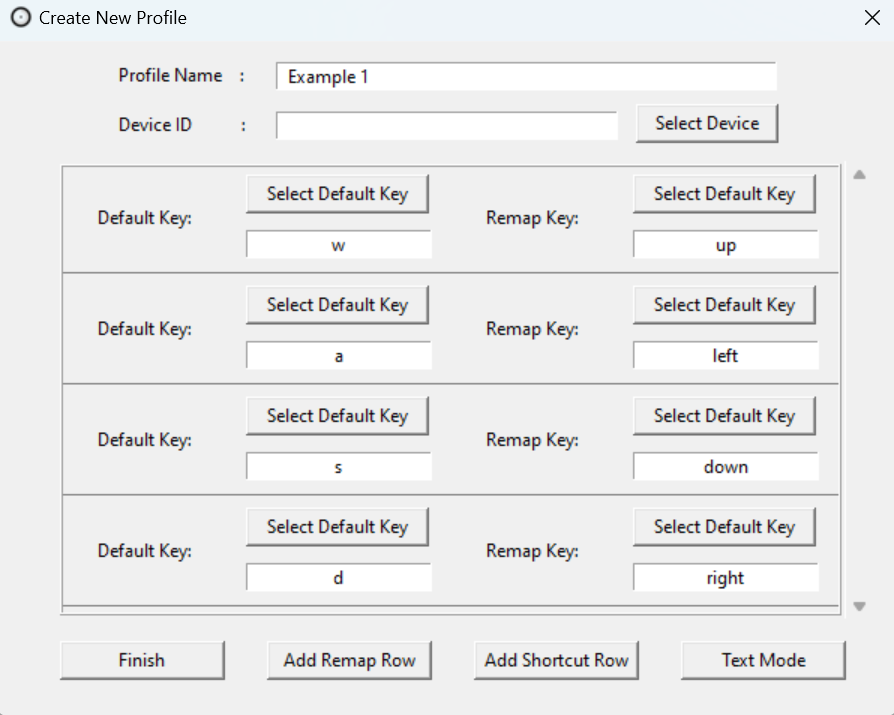
KeyTik generates the following script:
; default
^!p::ExitApp

w::Up
a::Left
s::Down
d::Right
Example 2 — With Shortcut:
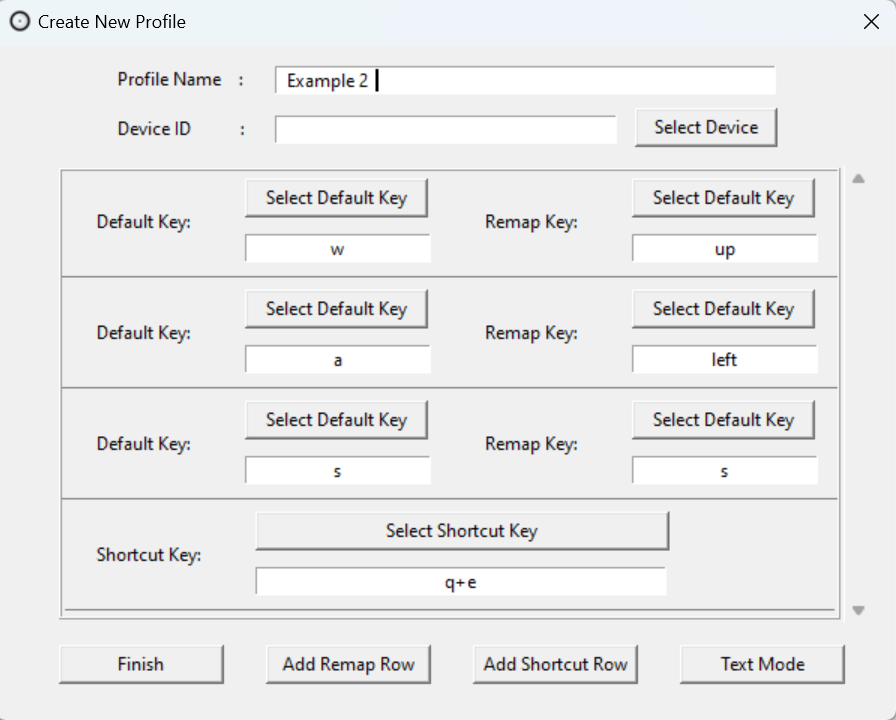
KeyTik generates the following script:
; default
^!p::ExitApp

toggle := false

~q & e::
{
    global toggle
    toggle := !toggle
}

#HotIf toggle
w::Up
a::Left
s::Down
#HotIf
Assigning a Profile to a Specific Device
This feature follows the same script generation process as standard remapping, with one key difference: KeyTik uses an AutoHotkey wrapper called AutoHotkey Interception by evilC to target input from a specific physical device. AutoHotkey Interception relies on the Interception driver by oblitum, which must be installed before this feature can be used. Installation instructions are available at AutoHotkey Interception — Install the Interception Driver.
To use this feature, select your device from the device list and click "Select." KeyTik will automatically detect the device type, VID, and PID/Handle and populate the "Device ID" field. From there, set up your remap or script as usual. The resulting profile will only activate for that specific device.
If you are not sure which device ID corresponds to your hardware, click "Open AHI Monitor To Test Device" to open the built-in AutoHotkey Interception monitor, which will show you input events from each connected device in real time.
For example, given this input:
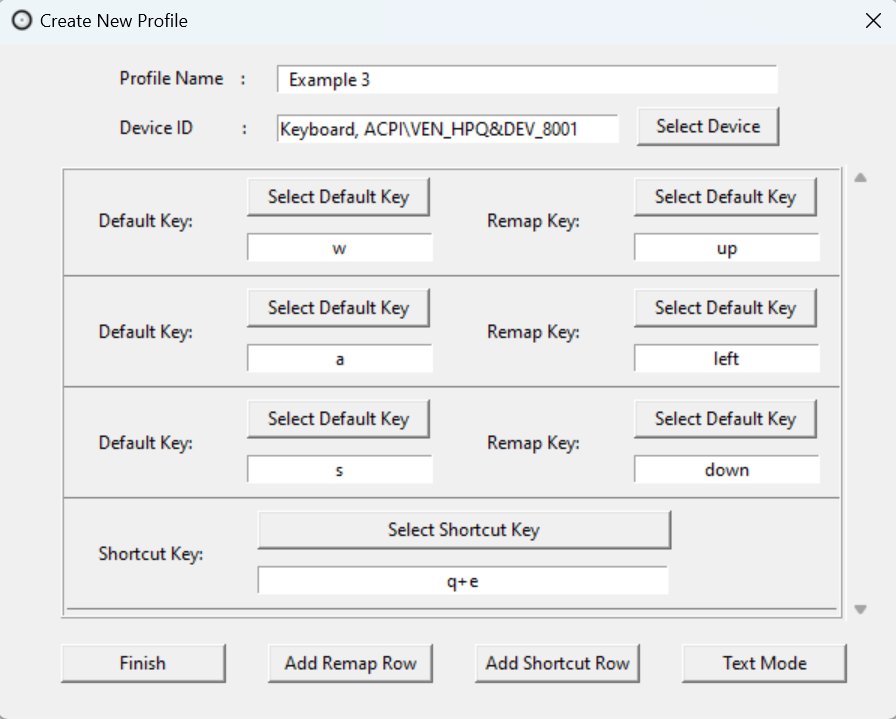
KeyTik generates the following script:
; default
^!p::ExitApp

#SingleInstance force
Persistent
#include AutoHotkey Interception\Lib\AutoHotInterception.ahk

AHI := AutoHotInterception()
id1 := AHI.GetDeviceIdFromHandle(false, "ACPI\VEN_HPQ&DEV_8001")
cm1 := AHI.CreateContextManager(id1)

#HotIf cm1.IsActive
toggle := false

~q & e::
{
    global toggle
    toggle := !toggle
}

#HotIf toggle
w::Up
a::Left
s::Down
#HotIf

#HotIf